
New Features & Enhancements
See our latest platform enhancements and tools designed to help you run and grow your wellness business with ease
Automatic Cancellation for Under-Enrolled Classes
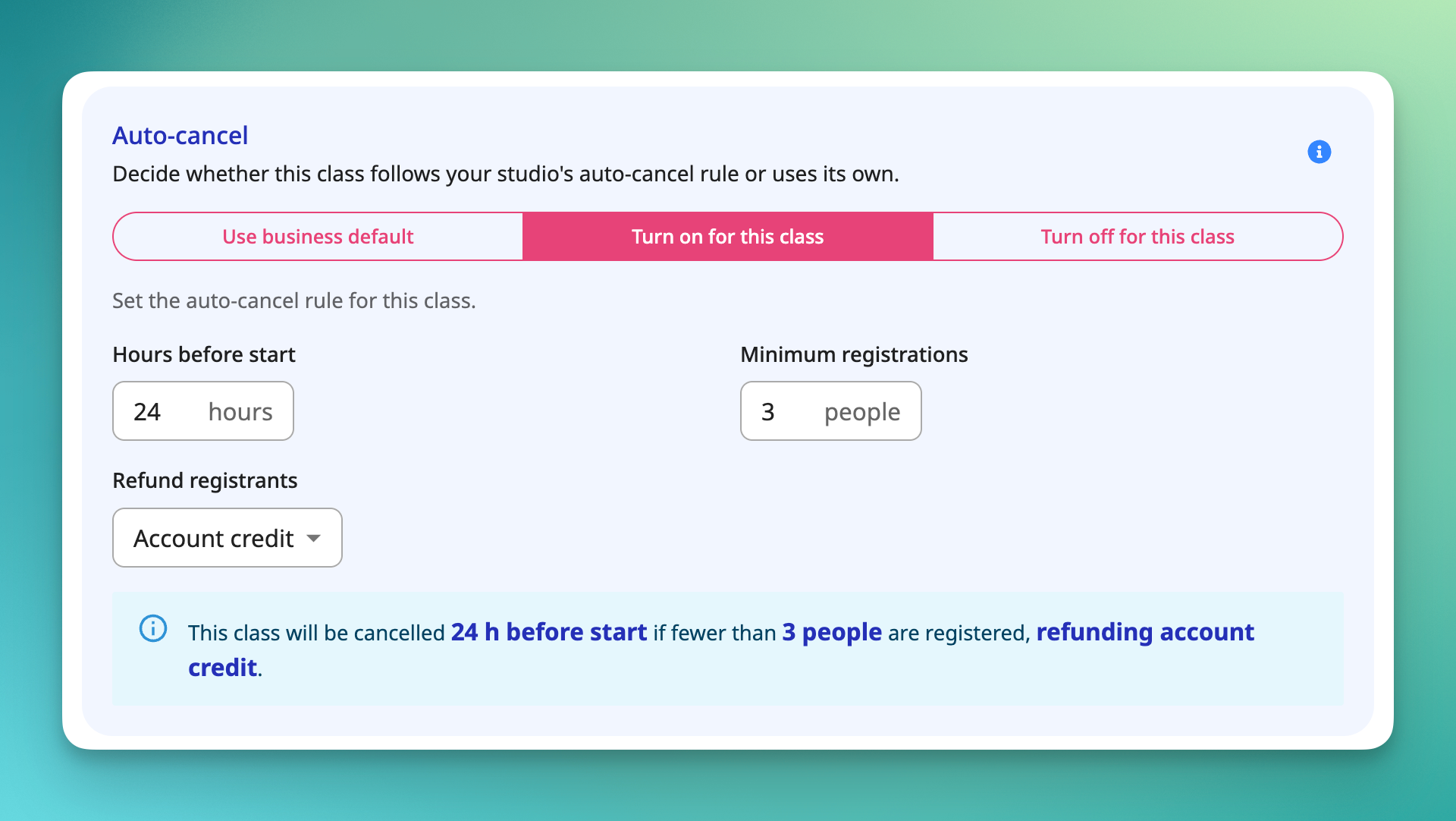
Running a class that only draws one or two people rarely makes sense. But catching a low-enrollment class in time, deciding to cancel it, and messaging everyone affected is a manual scramble businesses often don't catch until it's too late.
Now you can set OT to handle it for you. Choose a minimum enrollment count and a cutoff window for any class (for example, cancel automatically if fewer than 4 clients are registered 12 hours before start). If the class doesn't hit that minimum by the cutoff, OT cancels it and notifies everyone involved. 🗓️ You'll get a heads-up before it happens, so you can step in and keep the class on the books if you want to.
A few details worth knowing:
- You set the minimum enrollment count and cutoff window (hours before class start) individually for each class.
- Before auto-cancel kicks in, the assigned staff member and business owner get an advance alert with the option to override and hold the class.
- Overrides only work before the cutoff. Once the cutoff passes and the class is auto-cancelled, it can't be reinstated.
- If nobody overrides it, the class cancels at the cutoff and notifications go out to the business owner, assigned staff, and all registered clients.
- You choose how refunds are handled, either back to the client's card or as account credit.
- Enrollment is checked once, right at the cutoff. Any changes after that point won't reverse the decision.
Available on Pro Plus and above.
[Read the help article or watch the video]
Registration Cutoff Defaults
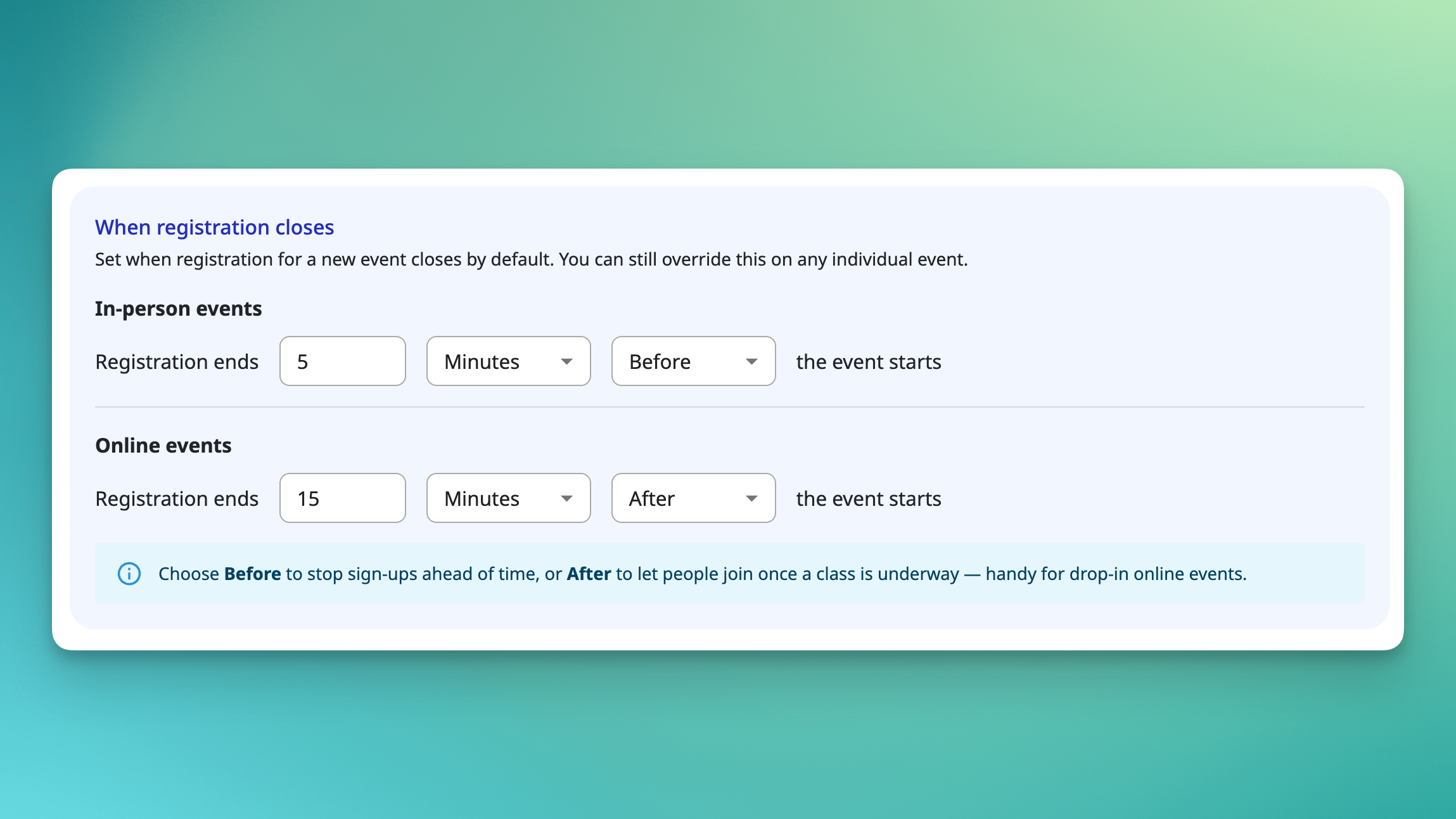
Setting the same registration cutoff on every event gets old fast, especially when your policy never changes. Previously, that meant re-entering the same rule each time, and any event you missed quietly fell back to the platform default.
🕐 You can now set a default registration close time for your whole account under Settings → Registration Settings, with separate defaults for in-person and online events. New events inherit the right default automatically, and you can still override the cutoff on any individual event when it needs different treatment.
A few details worth knowing:
- Where to find it: Settings → Registration Settings → "When registration closes."
- Two independent defaults: one for in-person, one for online, since the right policy usually differs.
- Before or after: set each default as time before or after the event starts. Before stops sign-ups ahead of time; After lets clients join after a class is underway, useful for drop-in online events.
- Zero means open: a default of 0 hours before keeps registration open until the event begins.
- Overrides still work: this adds a default, it doesn't replace event-level control.
Available on all plans.
[Read the help article or watch the video]
AI-Readable Site Profiles
More clients are turning to AI assistants like ChatGPT, Claude, and Perplexity to find and vet wellness businesses. The problem is those tools have to guess at what a business offers by crawling a webpage built for human readers, so classes, packages, and services often get missed or described inaccurately.
Every OfferingTree website now automatically publishes an llms.txt file 🤖, a clean, standardized index of your site's offerings that AI assistants can read directly. It refreshes daily alongside your sitemap, so it stays current as you add or update content. There's nothing to set up.
A few details worth knowing:
- Published automatically. Every site gets one at yoursite.com/llms.txt, with no toggle or opt-in required.
- What it includes. Offerings, packages, blog posts, store items, and site pages.
- Always current. Rebuilt daily on the same cycle as your sitemap, so new or edited content shows up on its own.
- The payoff. AI assistants can discover, describe, and recommend your business more accurately.
Available on all plans
Video Captions & Transcripts
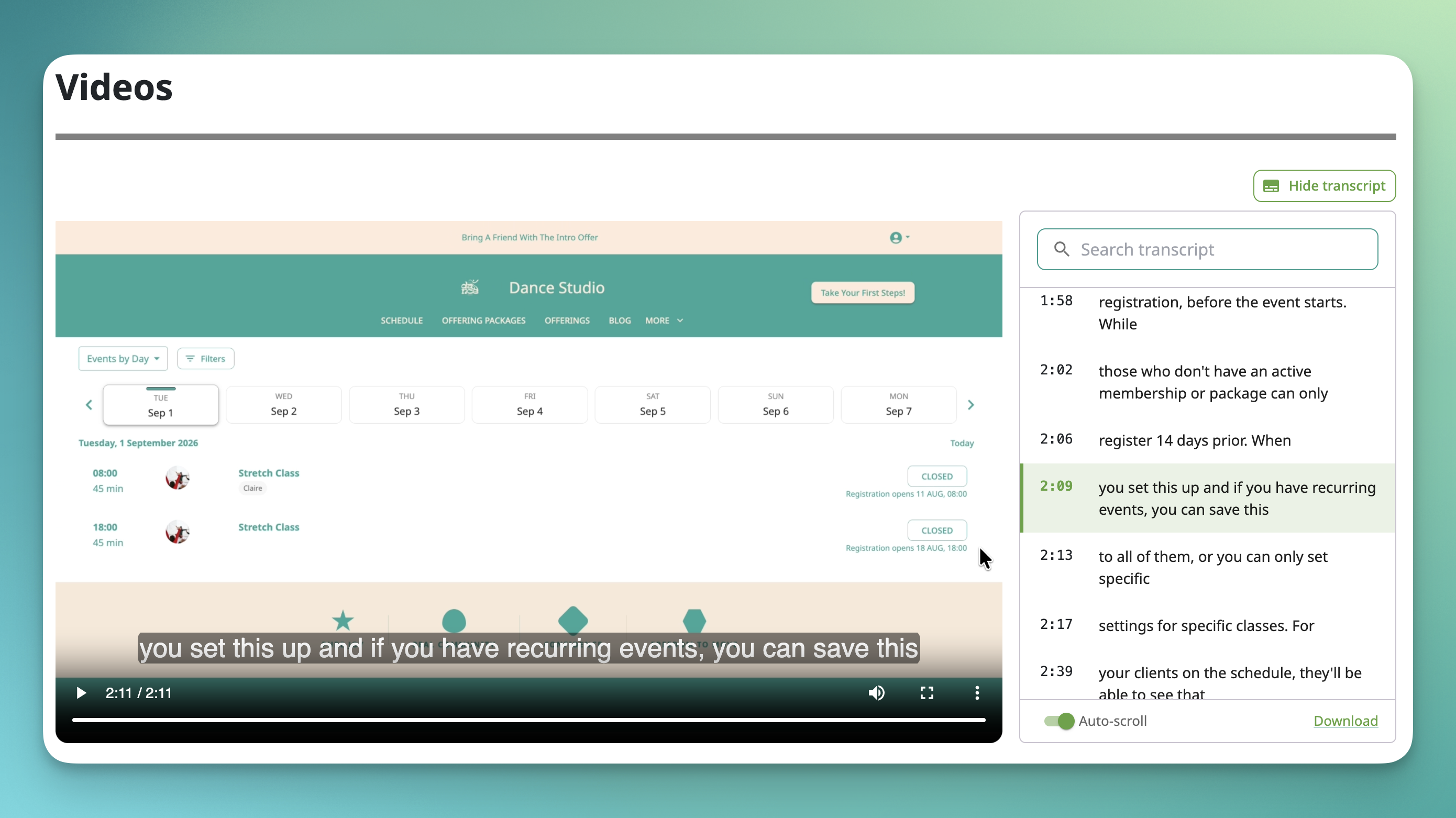
Studios sharing on-demand classes and courses haven't had a built-in way to add captions, which made content harder to follow for deaf and hard-of-hearing clients, non-native English speakers, and anyone watching with the sound off.
Now you can upload a caption file (.vtt) to any video in your store or courses. Clients get a CC toggle right on the player, plus something extra: a scrolling, clickable transcript panel that highlights each line as it plays and lets viewers jump to any point just by clicking the text. 📝
Because captions and the transcript come from the same uploaded file, there's only one file to manage, but two ways for clients to engage with it. Viewers can turn each on or off independently, so someone following along with a yoga flow can keep the full video visible, while someone who'd rather read can rely on the transcript alone.
A few details worth knowing:
- Uploading a caption file is free on every plan. .vtt is the standard caption format, and it's what Zoom exports to.
- The transcript panel is searchable, so viewers can find a specific phrase and jump straight to that moment in the video.
- Viewers can download the transcript as a standalone file.
- AI-generated captions (using Sprout credits, powered by AssemblyAI) are coming in a future release, along with an editor for fixing up auto-generated text, especially handy for Sanskrit terms and pose names. For now, businesses supply their own .vtt file.
Available on all plans: Essentials, Pro, Pro Plus, Studio Starter, Studio Grow, and Studio Max.
[Read the help article or watch the video]
OfferingTree Business Mobile App
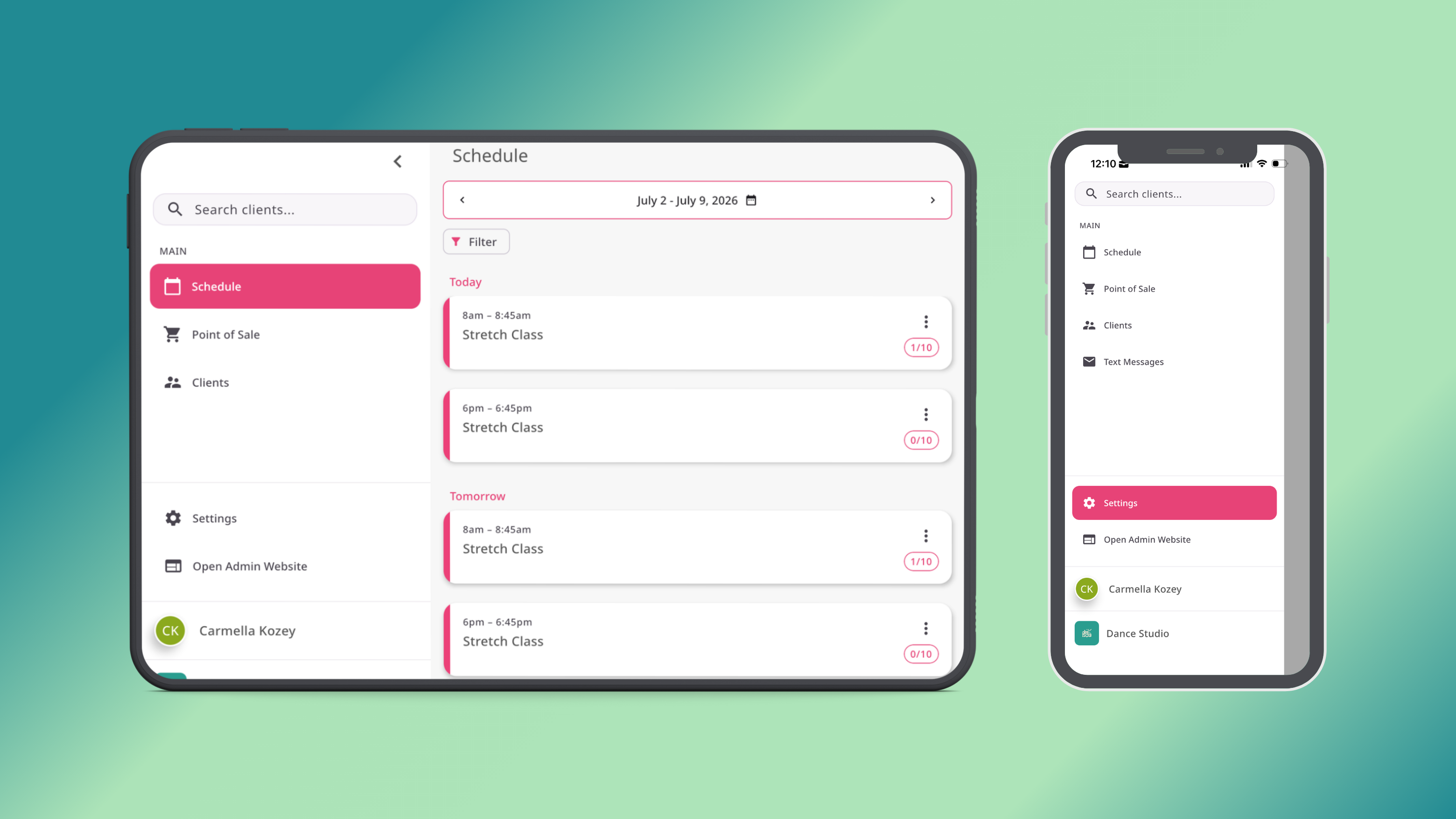
📱 Running the front desk from a laptop has always worked, but it was never really built for the pace of a busy studio. The new OfferingTree Business mobile app changes that.
Available on iOS and Android, the app is a dedicated experience for studios to manage front desk operations from a phone or tablet. Staff can handle the most common pre-and-post-class workflows in a touch-friendly interface designed for quick interactions, not deep administration.
Here's what you can do at launch:
View class rosters and tap into any session to see the full registration list.
Check clients in with a single tap, with membership status, notes, and visit history accessible inline.
Process sales through the full point-of-sale, including memberships, packages, and other offerings, with the same functionality available on the web app.
Take payments through the existing WiFi-connected Stripe terminal.
A few things on the roadmap but not in this release:
Tap to pay directly on supported devices and text messaging or push notification capabilities are all planned for future updates.
Available on all plans.
See it now on the app store:
[Read the help article or watch the video]
Reusable Message Templates
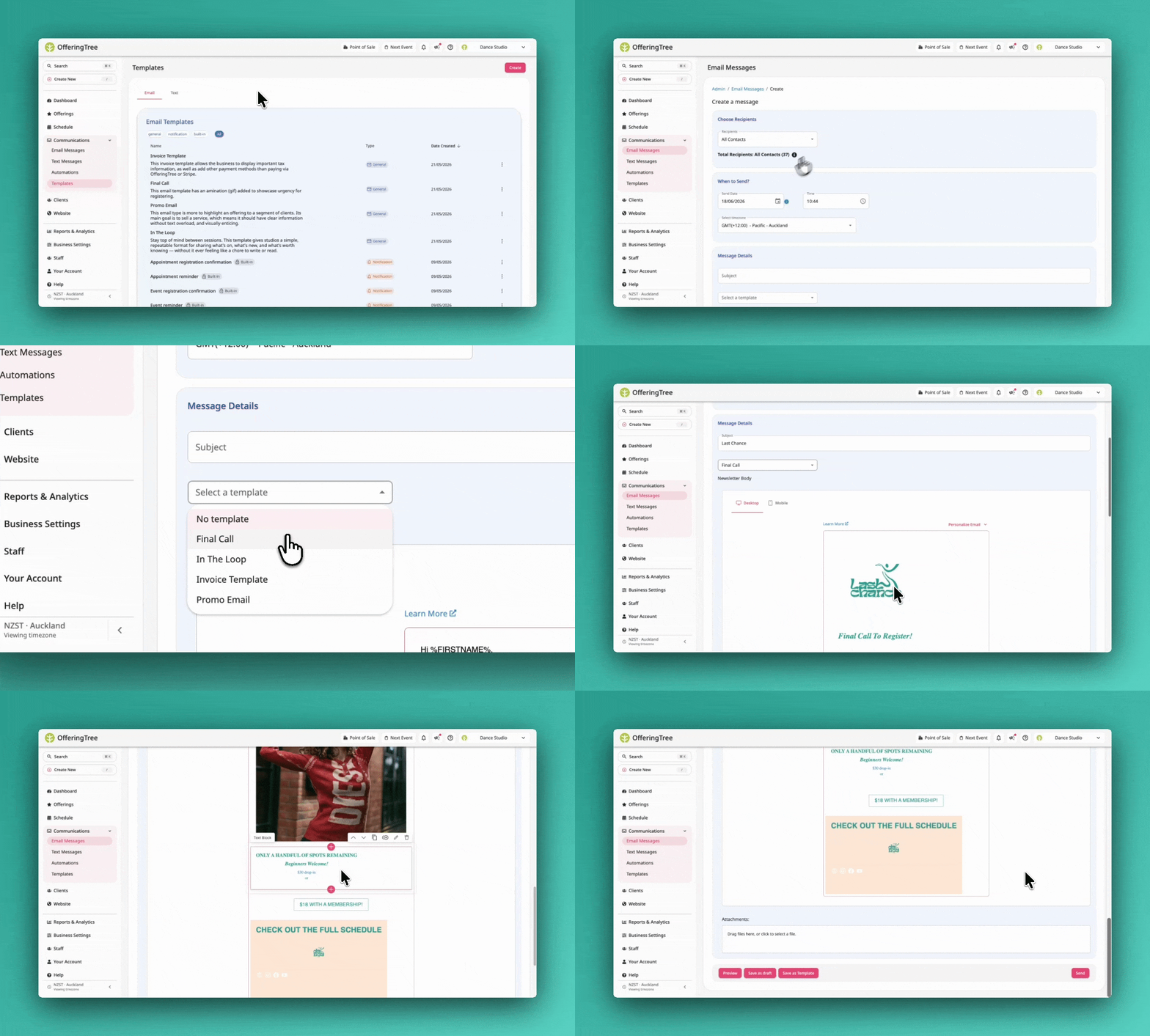
✉️ Personalizing client notifications used to mean editing every event one at a time, or living with OT's hard-coded defaults. Not anymore.
Build a per-account library of email and SMS templates that can be pulled into newsletters, automations, or per-event notifications. Pick one from the picker and it pre-fills the editor, ready to tweak before saving.
Every account also gets 8 default notification templates seeded with OT's standard copy, covering event and appointment registration confirmations and reminders across email and SMS. Edit them once and they apply everywhere a custom override isn't set.
A few things to know:
- Three template types are supported: visual email, rich-text email, and plain-text SMS. The picker only shows what fits the editor you're in.
- Templates are a starting point, not a live link. Editing one later won't change messages that already went out.
- Defaults can be edited and restored, but not deleted.
- SMS template editing requires the SMS customization feature. Default SMS templates still send for all accounts regardless.
- Attachments are dropped when a template is used in an automation node. The UI will warn you before that happens.
Available on all plans.
[Read the help article or watch the video]
Priority Registration
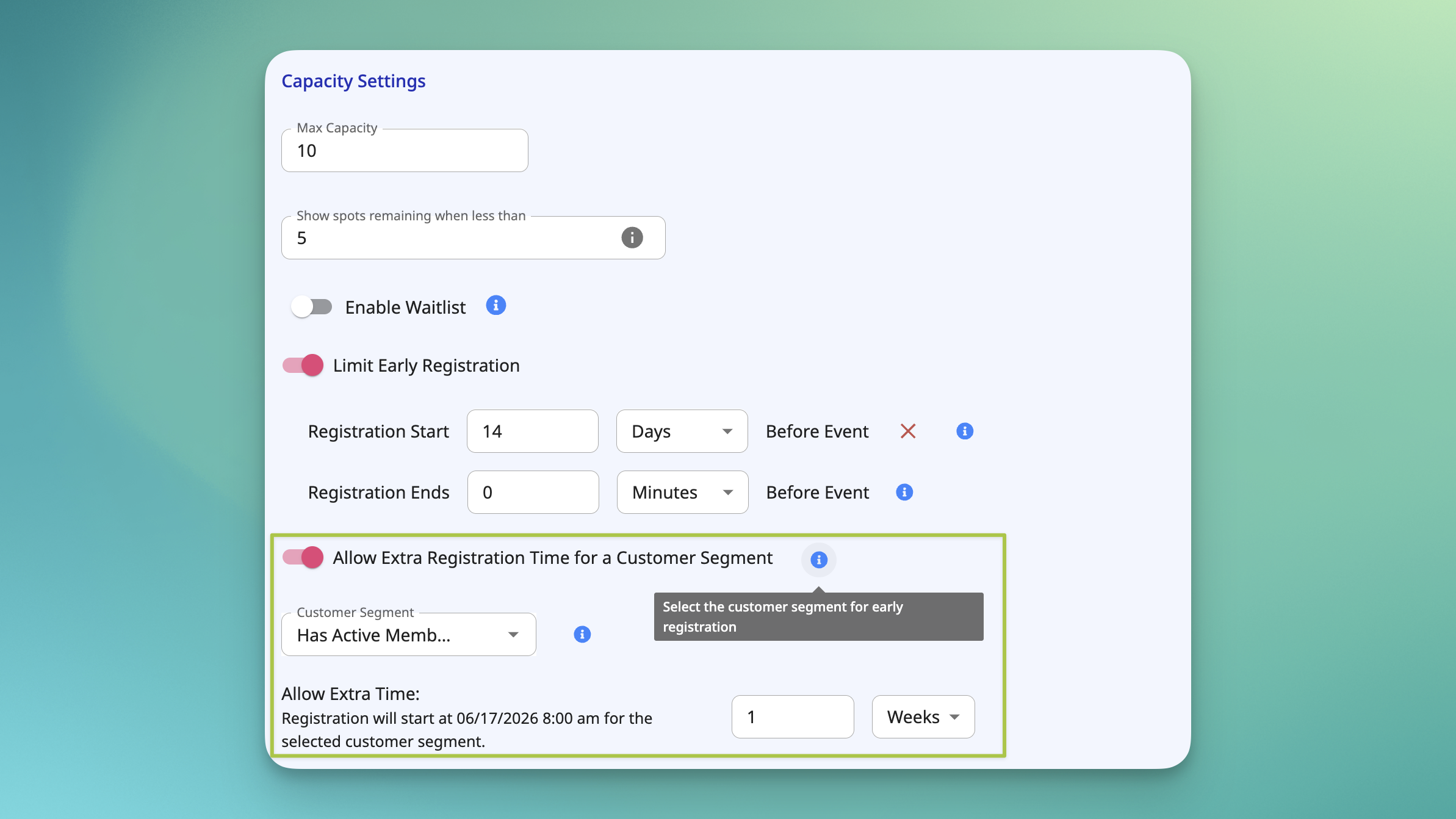
🎟️ Reward your most loyal clients with first dibs on the classes that fill up fastest.
Priority Registration lets you give a client segment a head start on booking eligible classes. You choose which classes offer the perk and how far in advance priority clients can register before the standard registration window opens. Everyone else sees the normal open date.
It's a simple way to make premium memberships, long-standing clients, or specific groups feel like the perk actually means something.
Here's how it works:
You configure Priority Registration at the class level, picking which classes are eligible and setting the size of the priority window (for example, 48 hours early or 7 days early). You also define which client segment qualifies, whether that's a specific membership tier, a custom client tag, or a manually curated group.
Clients in that segment see eligible classes as bookable during the priority window. Everyone else sees the regular registration open date as usual.
A few details to know before you set it up:
The perk applies to registration timing only. Pricing, capacity, and cancellation policies all stay the same.
ClassPass registrations are excluded from priority access. ClassPass bookings always follow the regular registration schedule, no matter what priority window is configured on the class.
Available on Pro Plus, Studio Grow, Studio Starter, and Studio Max.
[Read the help article or watch the video]
Duplicate Offerings & Event Series
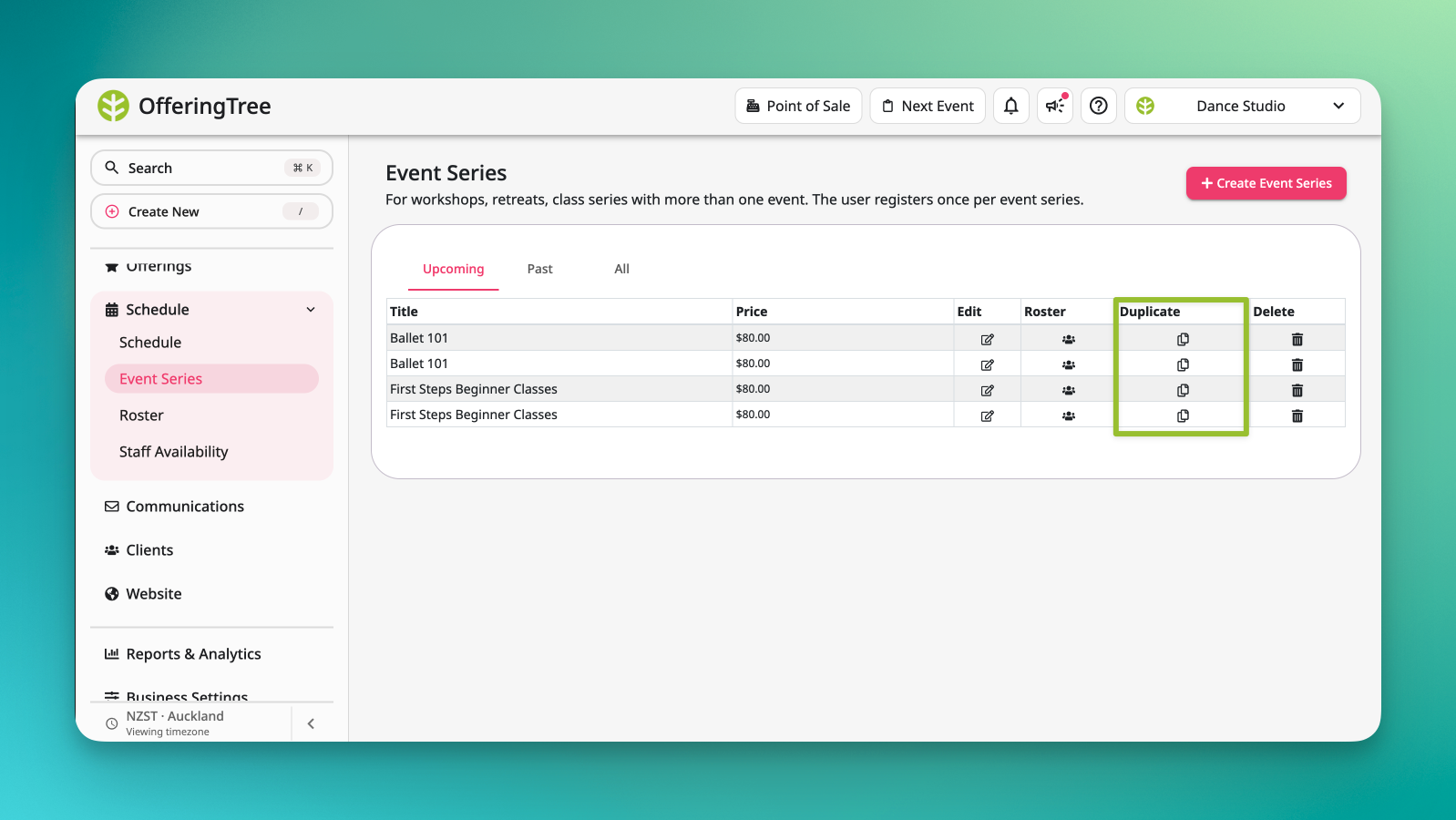
Setting up the same offering for the fifth time? Not anymore. 📋
If you run similar classes on repeat, or restart event series every few months (think a 6-week beginner yoga series that runs quarterly), you can now duplicate any existing offering or event series in a single action instead of rebuilding from scratch.
The duplicated copy carries over all the original configuration, so you only need to update what's actually changed.
A few details worth knowing:
- Works for both individual offerings and full event series.
- When duplicating an event series, all events inside it are copied along with the parent. Set a new start date and the individual events shift accordingly, keeping their original spacing and cadence intact.
- Pricing, descriptions, policies, capacity, and other core settings all come along for the ride.
- The duplicate is created as a draft, so you can review and adjust before publishing.
Available on all plans.